TimesheetPLUS User Guide and Training for Delaware DHSS
Supervisor View / Approval Process
A supervisor in the system has a similar view to the employee plus a few additional items in the navigation bar - My Team and Pending Approvals.
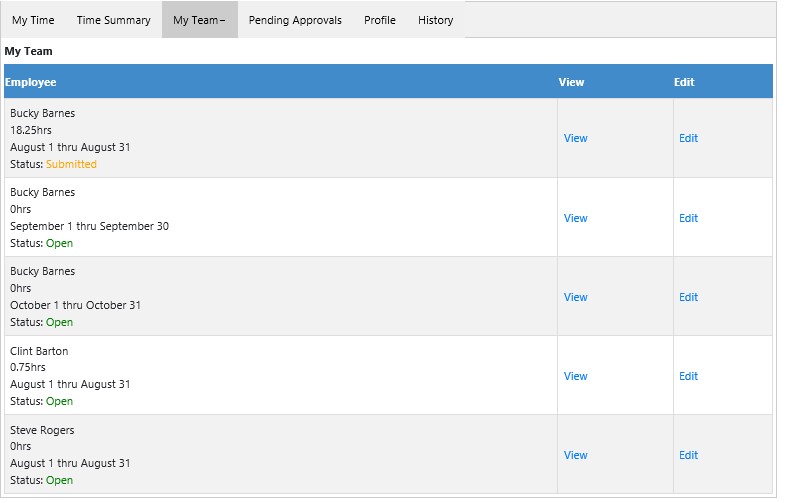
My Team will display all applicable timesheets of the employees assigned to that supervisor (regardless of their timesheet status). Along with a summary, a supervisor can choose a read-only (View) look at a timesheet or an editable (Edit) view in case they need to make changes or do anything on the employee’s behalf. This will be logged accordingly in the History tab.
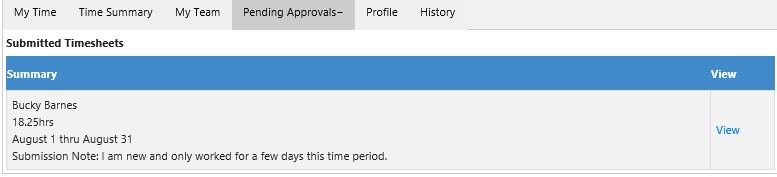
Pending Approvals only shows timesheets that have actually been submitted by an employee. To review the timesheet click the “View” link. Below is an example of the Pending Approval tab with a timesheet ready for review and approval.
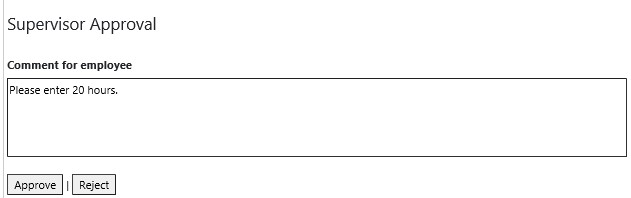
Clicking View on the submitted timesheet entry tab will load the employee's timesheet and navigate to the Time Summary tab. Instead of a validation/submit button at the bottom of this tab, a Supervisor will have an approval box. A comment for the employee (in the case of a rejection) or the admin can be entered into the box and the timesheet can be approved or rejected accordingly using the labeled buttons. Below is an example of the approval box.
Once approved or rejected, a timesheet entry will fall off the “Pending Approvals” tab but will still be visible on the “My Team” tab. On the employee's end, the status message will change to reflect the new status. If rejected, an email will be sent to the employee and the timesheet will again be editable. If approved, there is no more to be done and the timesheet is no longer available.
For DDDS supervisors, if an employee submits time outside their designated schedule then they will appear on the "Time Exceptions" tab. You can approve the exceptions or request users make revisions then approve after corrections have been made.
Continue To Next Page